Help:Cosmetic Form
More actions
This page will guide new users through process of adding a new entry to the table using the form and will have some answers for most common issues. It is recommended to read through this article entirely first, or use navigation below to find solutions to common issues.
Cosmetic Form is a convenient way to add entries to Cargo Table that contains cosmetic items from the game and functions as a database.
Main Attributes
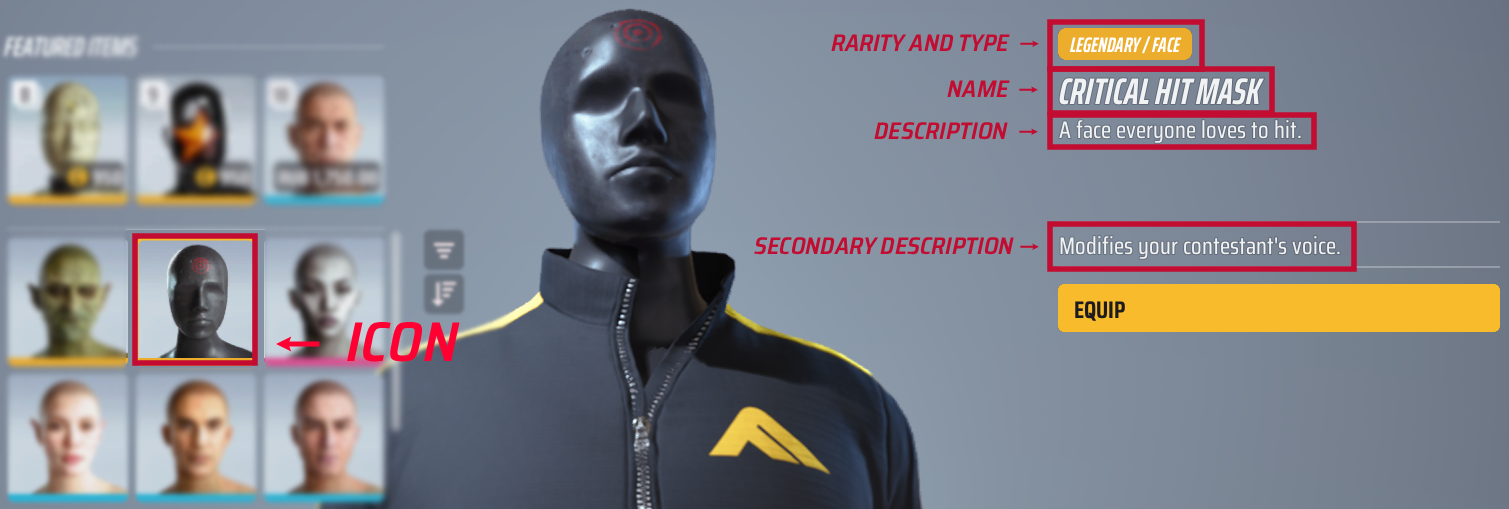
There's 7 important attributes for each cosmetic item that is added to the database:
- Name - Name of the cosmetic item. Always in capital letters unless it is lowercase in the game.
- Icon - Small image that is used in the game's menu. Not the screenshot of the item itself.
- Type - What slot in the customisation this item belongs to.
- Rarity - How "polished" or "expensive" item is. Distinguished by colours
- Description - Item's description in the game. Not literal description of how the item looks.
- Secondary description - Some items have additional description below the main one that explains special effects and properties of the item.
- Season introduced - When the item was added to the game.
- Origin - How the item could be obtained.
Here will be shown an example on how to gather this information with the help from Barry.
Name, Icon, Type, Rarity, Description
These are the basic and most important attributes and all of them can be found very close to each other.

Icon
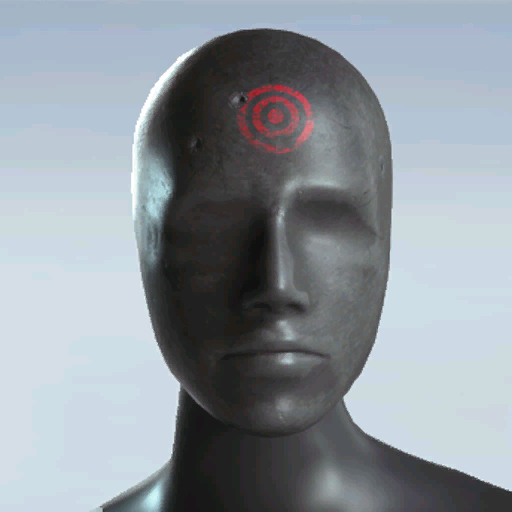
It is preferred that the icon is the highest quality and clean, without any obstructions, marks and price tags. Preferred image format is square (1:1) PNG. It is not always possible to take a screenshot like that and only dataminers have access to high quality icons, but uploading any icon is preferred.

Preparing the icon for the Wiki is the most time consuming step, but it helps the pages look clean.
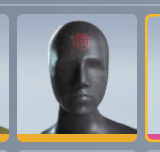
- Step 1 - Take a screenshot of the icon, when the item is deselected. This will remove the yellow border from the icon and will simplify the next step.

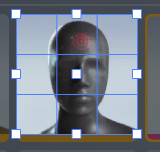
- Step 2 - Crop the screenshot so only the icon itself is left. No borders, no rarity lines. Just the icon.

- Step 3 - Upload the icon and name it properly. Just the name of the item in capital letters. Ex.:
NAME.png.- There exists an edge case where multiple items have the exact same name. To get around that, add a distinguishing characteristic to image name, like equipment name or defining color. Ex.:
NAME Color.pngorNAME Weapon.png.
- There exists an edge case where multiple items have the exact same name. To get around that, add a distinguishing characteristic to image name, like equipment name or defining color. Ex.:
Season introduced & Origin
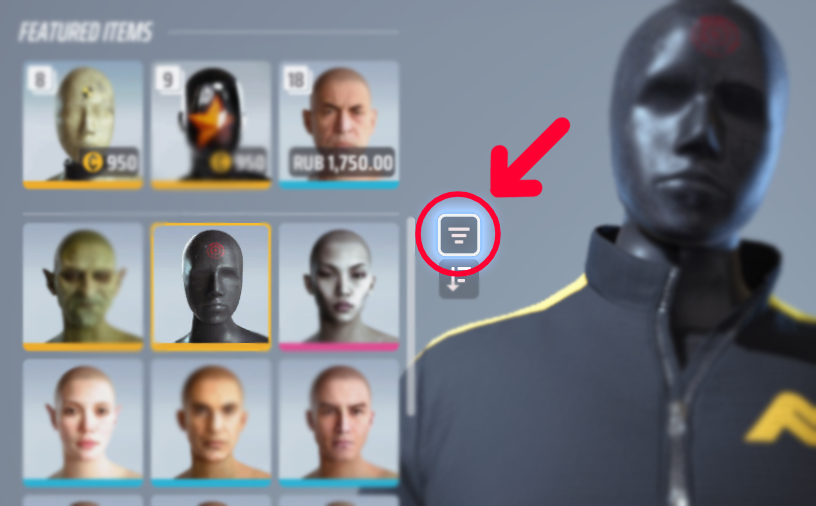
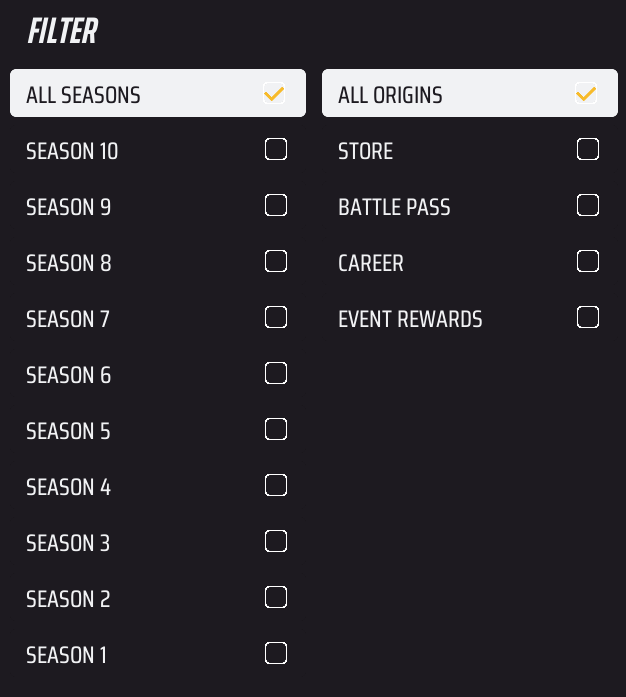
To find when the item was added to the game and where it came from, for most cases, you can use filter system in-game.

Select different seasons until you find your item. Then through origin filter find where it came from.

Common Issues
- I can't find my item through filters.
- If you can't find the item's season:
- It is most likely comes from Beta or it was in the game on release. In the latter case, Season when the item was added is S1.
- If you can't find the item's origin, you've narrowed down your search.
- Try remembering where you got the item from.
- Try to find the mentions of the item on the internet.
- As the last resort, ask about the item here.
- If you can't find the item's season:
- Forms don't have attributes for my item's origin.
- Try to find proper attributes in Non-Guided mode.
- If there is truly no attributes for what you are trying to add, ask for assistance here.
Guided Mode
Guided mode is designed to speed up the process of creating and editing cosmetic forms and it is heavily encouraged to use it. It hides all the fields that are not related to certain types of items (Ex. You don't need fill in Ranked Rewards attributes for Event Rewards).
Many cosmetic types in Guided Mode are self explanatory, but some require a bit more explanation because they may be combining several different types together.
Special Pass
Unlike Battle Pass type Special Pass is what we call not seasonal battle passes. They may be tied to the events or stand-alone, but in simple terms: Special Pass is a Battle Pass that is not Seasonal Battle Pass.
Events and Circuits
Sometimes THE FINALS features small events that reward players that complete an event circuit. These rewards should be marked as Events, regardless of the format. In short - only seasonal circuit rewards that are tied to world tour stops should be marked as circuit rewards.
Gifts and Easter Eggs
Gifts are items that were given to players by Embark Studios (or their partners). They may come in different forms: in-game mail, gift codes or as rewards for achievements in the community activities.
Easter Eggs on the other hand, while can be seen as gifts, are items that required certain puzzle solving to obtain, thus have their own category.
Equipment Level
These are rewards that can be earned by progressing in mastery of the equipment.
Common Issues
- I can't find my type of cosmetic in Guided Mode.
- Switch to Non-Guided mode and look for fitting attributes that you might be looking for. If you still did not find anything that fits report the issue here.
Availability
These fields may be confusing at first because two of them sound very similar at the first glance, but serve different functions for categorisation.
- Limited time - Type of items that were obtainable only for a short period of time and had a history of coming back. Holiday bundles, event and circuit rewards. This does not mean that the item will be back. Only the chance that it might.
- Will never be obtainable again - Type of items that were only obtainable once and will not ever be. Any items that are tied to the Season (Ex: Season Started Bundle) or year (Ex. Anniversary Bundles) will not return as the same item. As well as items purchased with real money directly (not Multibucks) that were later removed from the store (Ex. Ultimate Battle Pass, Esport Teams Bundles). This also includes certain types of gifts, like mail or in-person event gifts that did not have history of being obtainable again.
- Unreleased cosmetic - items that have appeared in the game, but were removed by the developers of were never obtainable. So far there is only two examples that would fit this category.
Bundles and Outfits
The majority of items come in bundles or exist as a part of some outfit.
What qualifies as a bundle
There exists a specific case where this Wiki does not follow Embark's vision on the items' types and it has to do with bundles and outfits. Any item that contains several items should be marked as a bundle, or as an outfit if it does not contain anything else but the contestant's customisation.
In many cases Embark does not create dedicated bundles for smaller bundles and can mark them as the type of the main item in that bundle.
Example: A small bundle that contains a Charm and a Skin in game is marked Legendary skin:
It has the same name and description as the skin but a different icon. In this case mark it as a bundle:
Then add a Skin and a Charm as part of this bundle.
Common Issues
- What is the reason for marking "Skin Bundles" as Bundles on the wiki?
- Consistency - Embark does not always follow their own naming scheme and we are trying to build a consistent database.
- Wiki limitations - With the current setup of the templates only Bundles and Outfits support displaying items in them.
- There is an Outfit that contains not just clothing items
- Does the Outfit contain Appearance items?
- Yes - It is still an Outfit.
- No, it has other things (Emote/Spray/etc.) - Mark it as Bundle and add Outfit separately. Make sure Outfit contains only the items that are equipped when the Outfit is selected.
- Does the Outfit contain Appearance items?
- There is an Outfit with multiple variations of the clothing
- Mark it as Bundle and add Outfit separately. Make sure Outfit contains only the items that are equipped when the Outfit is selected and not item variations.
- There is a Bundle that only contains Outfit items
- Does the Bundle contain multiple variations of outfit items?
- Yes - See previous entry.
- No - Mark it as an Outfit. Make sure you add Alternate Icon to the outfit.
- Does the Bundle contain multiple variations of outfit items?
- The Item is is a part of several Bundles/Outfits
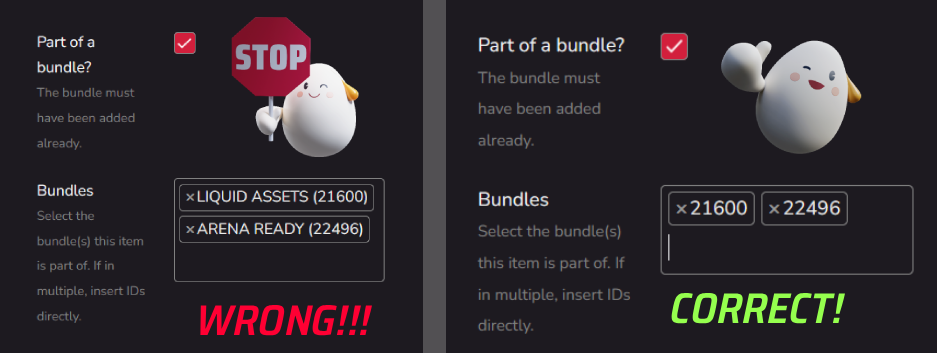
- If you try to add several Bundles or Outfits into the field you can notice that when you save the page only the first entry in the field will be displayed.
- Due to a system limitation, when adding the items to multiple bundles/outfits you need to fill the field differently.
- Use wiki bundles' IDs to populate the fields instead of full naming scheme. See the image below.